What IFC Viewer does
IFC Viewer opens an IFC model in the browser for review. The elements and their properties are inspected, filtered and isolated, the model is measured and cut with section planes, and the state of the review is kept as saved views. Issues are recorded in the BCF format, and the model is checked against the structural property-set rules of a submission standard. The model itself is never modified. The tool is free with a StructuralMind account. Keeping files in the project, creating BCF issues and the element-by-element compliance list are available on the Engineer plan and higher.
Pick IFC Viewer in the Calculation Gallery and add it to your project with "Start Calculation". A new calculation asks for its model first.
Opening a model
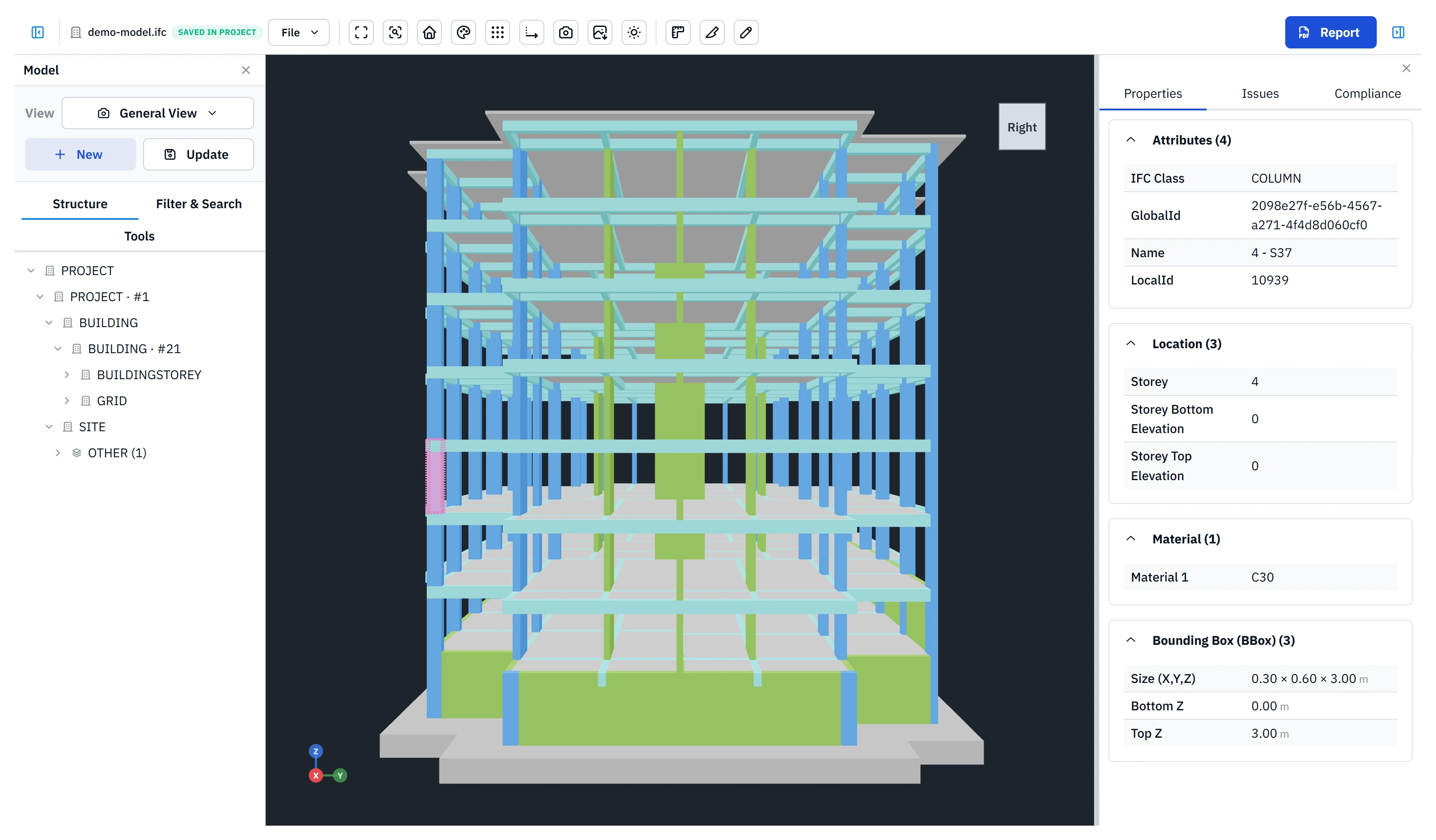
Open from Computer opens an IFC file in the browser without uploading it. Pick from Project loads an IFC saved to the project's files. A model opened from the computer can be kept with Save File to Project in the File menu, and the badge beside its name changes from Not saved to Saved in project.
Views, measurements, sections, markups and issues are saved with the calculation either way. When the file itself is not kept in the project, opening the calculation again asks for the same file and the saved session returns on it. Change IFC replaces the model and removes the measurements, sections, markups, saved views and BCF issues made on the previous one.
Navigating and inspecting
The left mouse button selects, the right button turns the model, the middle button pans and the wheel zooms towards the point under the pointer. The view cube at the top right turns the camera to a face or a corner. The tool bar above the model holds Fit to model, Focus on selection, the colouring menu (native colours, category colours or a single colour), the grid, the origin axes, the camera menu (perspective or orthographic projection and the standard views), Download view as PNG and the background switch.
The Structure tab lists the model as the file arranges it: project, building, storeys and their elements. Clicking an element in the model or in the tree selects it, and the Properties tab on the right shows its IFC class and attributes, its storey, its material, its profile, its bounding box and every property set the file carries for it.
Filtering and isolating
Filter & Search finds elements by IFC class, by storey, by a part of their name, and by the name and value of a property or property set. Search gives the number of elements found. The buttons below act on them: Select, Isolate (only they stay visible), Highlight (the others turn transparent), Hide and Show, with Show All to bring the whole model back. A colour swatch under Colorize paints the elements found, and each search can take its own colour.
Measuring and sections
The ruler in the tool bar measures a Length with two points, an Area with its corners (ended with Enter, a right click or a double click) and an Angle with three points. A length is taken freely or with the points snapped to the element edges. The section tool adds a plane from below or from above, or a vertical plane along X or Y, and Click face to cut places the plane on a face of the model. A plane is moved by dragging it. The Tools tab lists the measurements, sections and markups, and each one is deleted there.
Saved views
The View menu at the top of the Model panel holds the saved views. New saves the current state as a view: the filter, the colouring, the camera, the sections and the measurements. Update writes the current state into the active view. The measurements, sections and markups belong to the view they were made in, so switching views brings each view's own set back. General View, the whole model in its native colours, is always there.
Issues and markup
The Issues tab records issues in BCF, the format coordination tools exchange. New Issue keeps the current 3D view and the selected elements with the issue. Each issue has a title, a description, a type (issue, clash, remark or request), a status (open, in progress, resolved or closed), a priority and the person it is assigned to. Comments and further views are added to it later. Create BCF File exports the issues as a BCF 2.1 file, and Import BCF brings in a file from another tool.
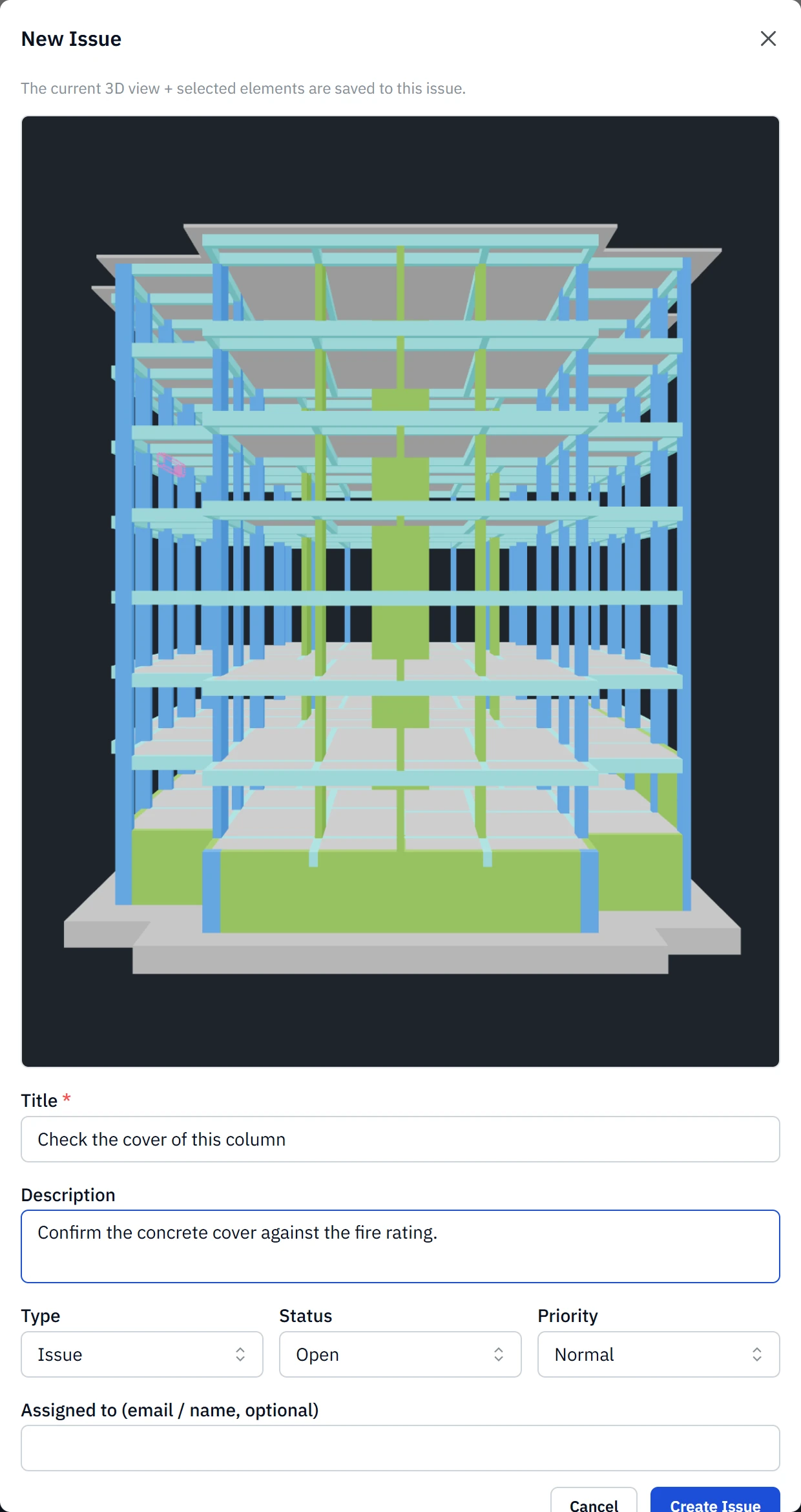
The pencil in the tool bar draws 2D markups over the view: arrows, boxes, clouds, freehand lines and text. The markups are drawn into the picture of the view, so they travel with the issue's views in the BCF file.
Compliance check
The Compliance tab checks the model against the structural property-set rules of a submission standard. TR Digital Submission (Structural) follows Annex-6 of the Turkish Regulation on the Digital Preparation of Architectural and Engineering Projects, and SG CORENET X (Structural) the Singapore submission rules. Load Custom IDS Set adds the rules of an IDS file. Run Check reads the model and changes nothing in it.
The summary gives the number of elements checked, passed and failed, and the number of missing or empty fields. The list below names each non-compliant element with its missing fields. Clicking a field shows the rule, the property set it belongs to and the corrective action, and Create BCF Topic turns the finding into an issue. Annex-6 is written for the IFC4 schema, so in an IFC2X3 model the IFC4-only fields are not reported and the tab says so.
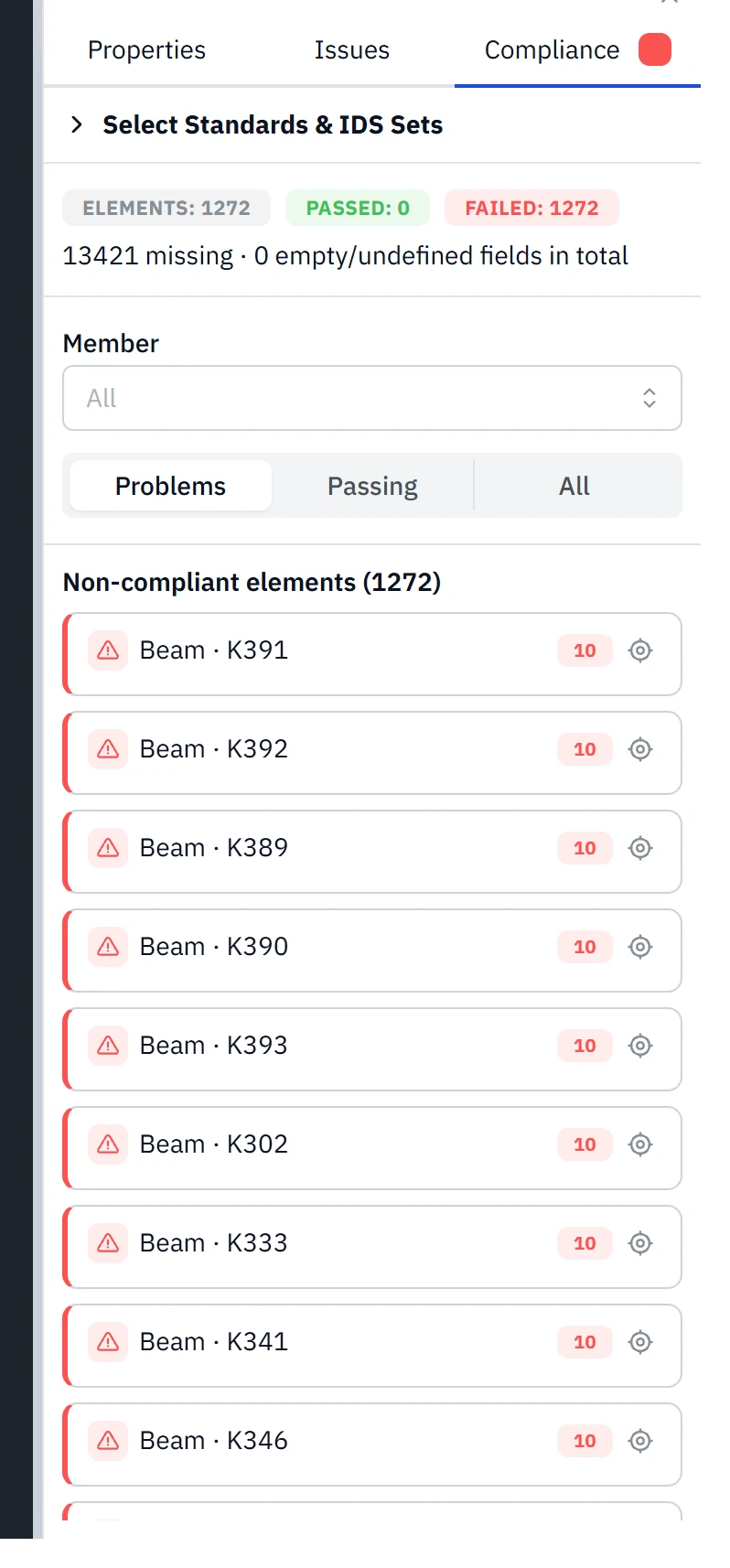
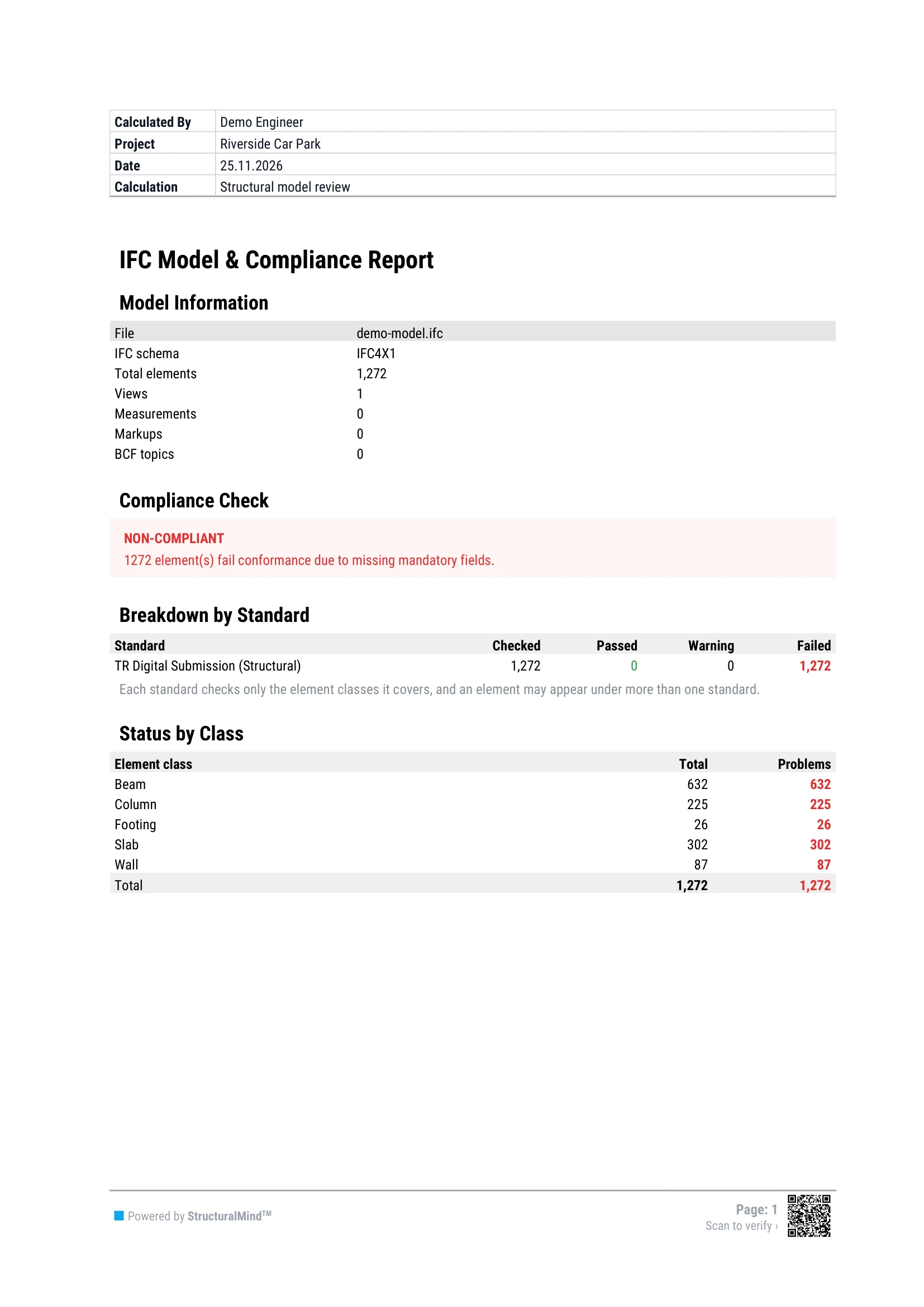
The demo model was exported without the property sets the standard requires, so every element fails.
Report
Report produces a PDF in the language of the interface. It lists the file, its IFC schema, the number of elements, views, measurements, markups and BCF topics, and gives the result of the compliance check: the verdict, the breakdown by standard and the status by element class. When no check was run, the report says so.
Publishing and verification
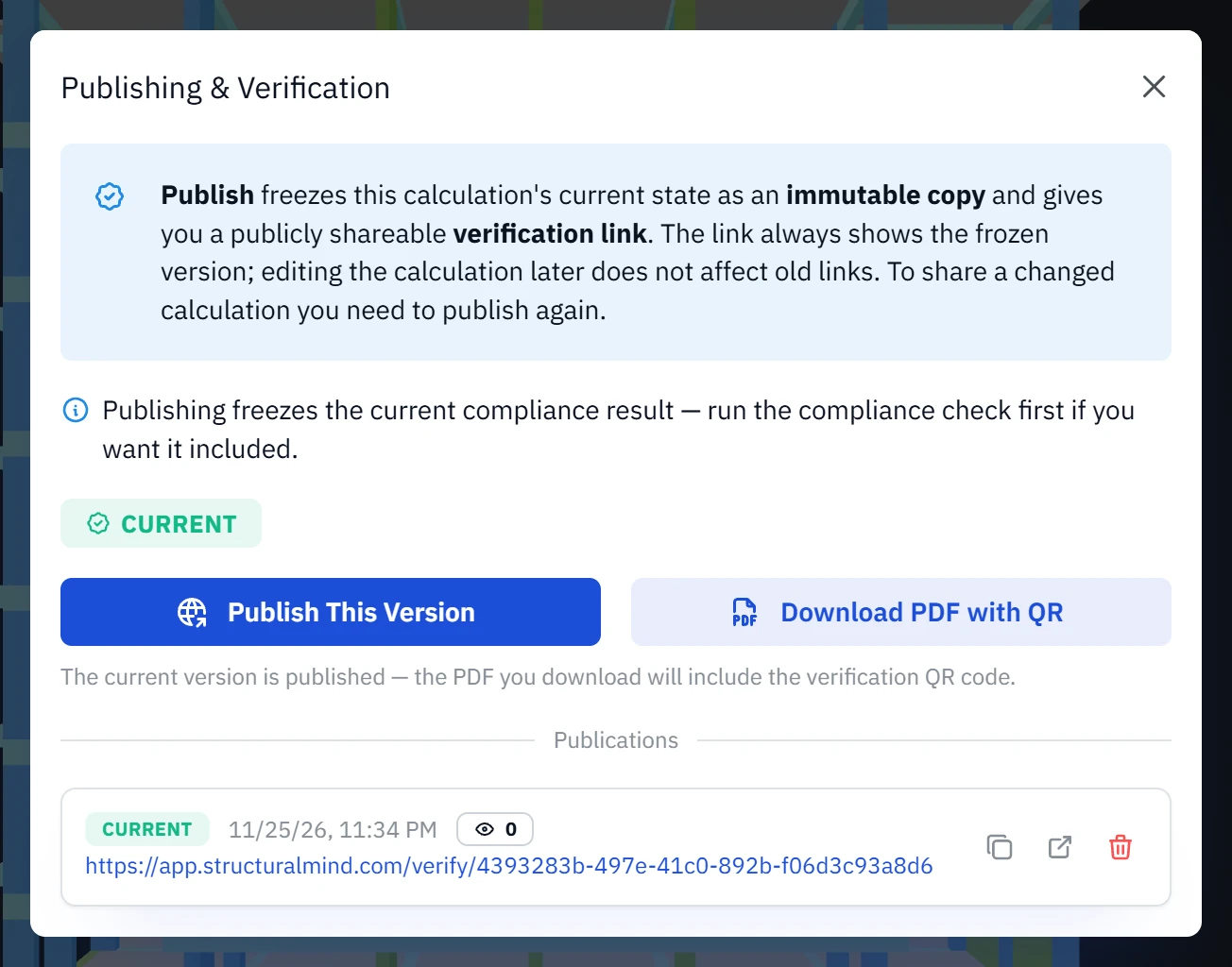
Publish at the top of the page opens the Publishing & Verification window. Publish This Version freezes the session, including the compliance result on screen, and gives it a verification link that anyone can open. Run the compliance check before publishing if the result is to be included. Editing the calculation afterwards leaves the published copy as it was.
While the calculation is in its published state, the window marks it Current. Download PDF with QR then gives the report with a QR code that opens the verification page. Once the session changes, the report no longer matches the publication and the QR is left out. Publish again to restore it.