The assistant
The StructuralMind Model Editor's AI assistant builds and changes the model from commands written in plain words, and answers questions about it. Every change it makes is shown as a preview first and reaches the model only when you apply it.
The assistant is part of the paid plans. The organization shares a monthly allowance, and the bar in the assistant's header shows how much of it is used this month; the bar turns yellow at 80% and red at 95%. On a plan without the assistant its button carries a lock and opens the upgrade window. A model opened read-only, while another member is editing it or by a guest, has no assistant.
Opening the assistant
The Assistant button at the end of the toolbar, or Alt+A, opens the assistant in a column on the right of the editor. Closing it keeps the conversation and any preview waiting in it.
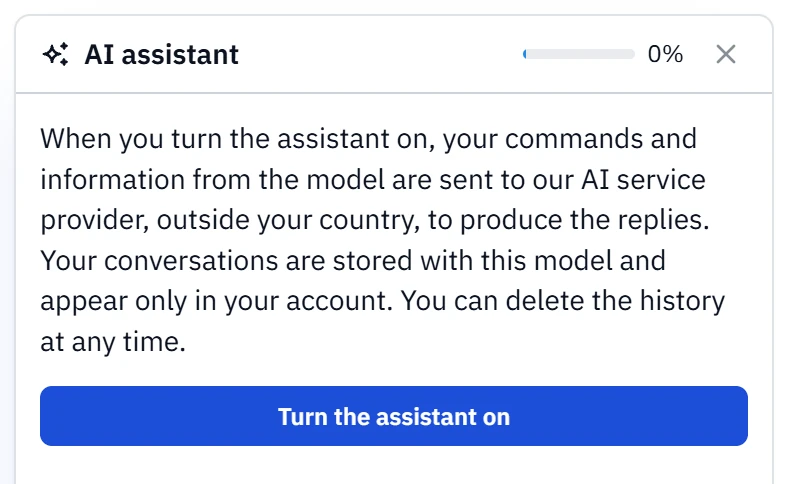
The first time, the assistant asks for consent: your commands and information from the model are sent to an AI service provider outside your country to produce the replies. Turn the assistant on gives it; the choice is kept in this browser.
Giving a command
Write the command in the box at the bottom and press Enter or Send; Shift+Enter starts a new line. While the assistant works, a line above the box says what it is doing (Reading the command, Setting out axes and storeys, Placing members …), the editor stays read-only, and Send turns into Stop. Stopping keeps what the assistant has already done as a preview.
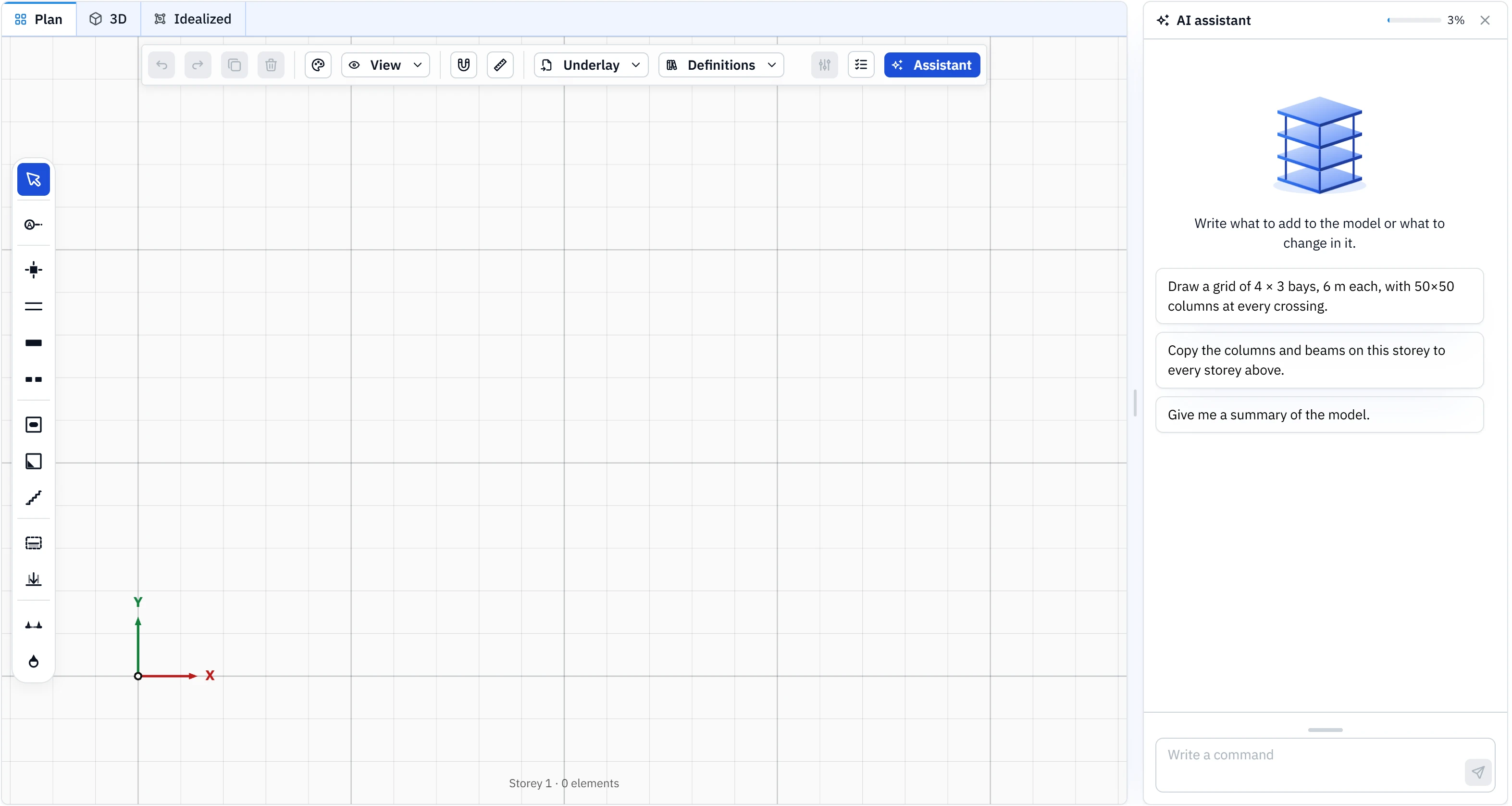
An empty conversation offers three example commands; clicking one puts it in the box without sending it.
The preview
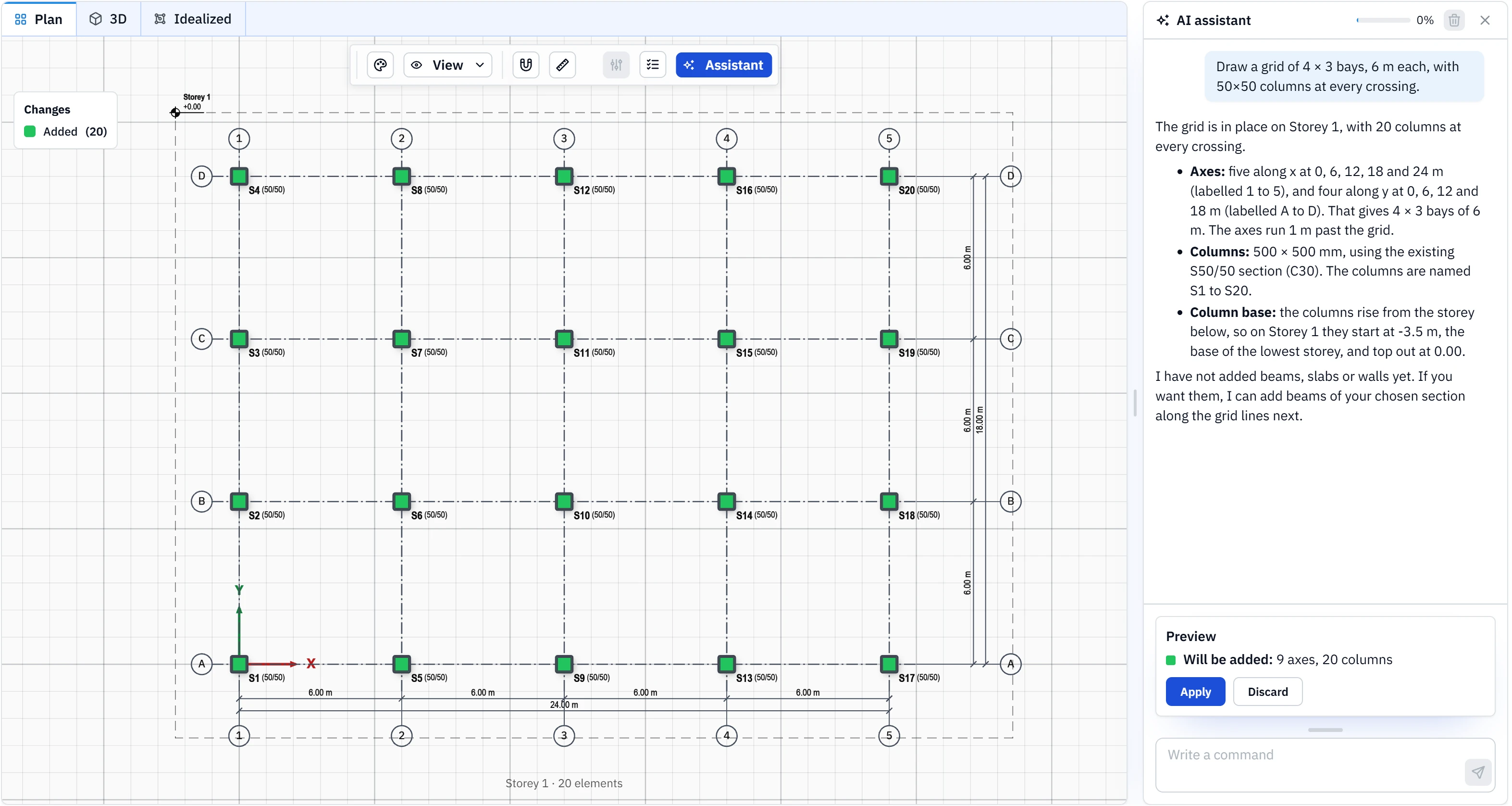
When a command changes the model, the conversation ends with a Preview: how many elements of each kind Will be added, Will be changed and Will be deleted. The counts come from comparing the model before and after, not from the assistant's own account. On the plan and in 3D the elements are coloured: added green, changed orange, deleted red, drawn on the plan as a dashed outline. Loads and equipment appear only in the counts. The storeys can be walked through while the preview waits.
| Button | Result |
|---|---|
| Apply | The whole change goes into the model as one step of undo. |
| Discard | The preview is thrown away and the model stays as it was. |
Apply does not save the model. The page's Unsaved badge appears, and the change is kept only when Save is pressed. A new command sent while a preview waits builds on top of it, and the next preview holds both.
A building in a few commands
Commands build on each other within a conversation. The clip starts from an empty model: the first command sets out four storeys with their grid, columns, beams and slabs; the second adds a core of walls with a stair inside it; the third shows the result in 3D.
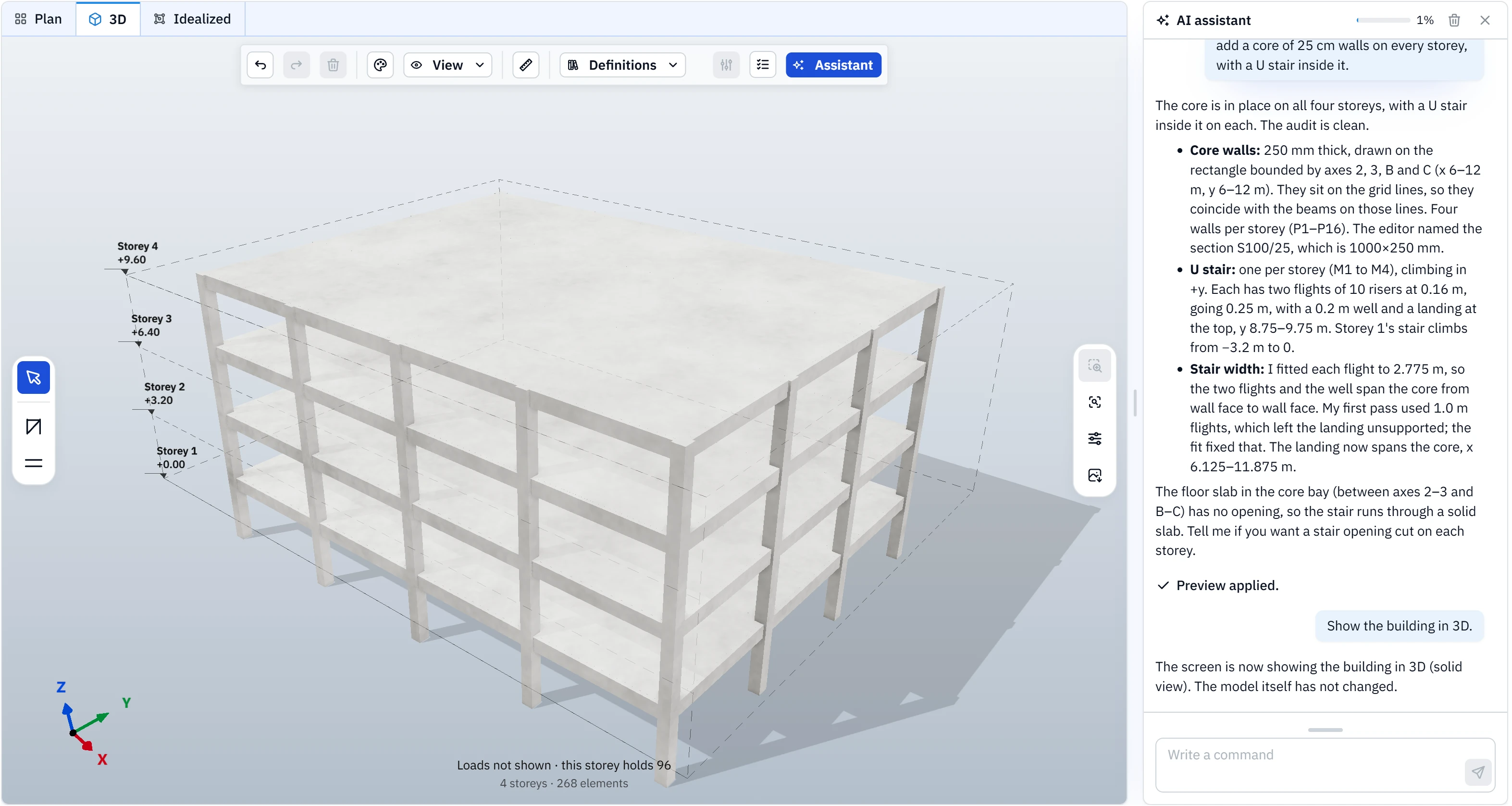
The assistant says what it assumed and what is left to check; in the clip it points out that the slab in the core bay has no opening for the stair yet, and offers to cut one.
Commands about the selection
What is selected on the screen goes with the command, so "these" and "the selected" mean it. Select the elements on the plan, Ctrl adding to the selection, then write the command.
Loads
The assistant puts loads on elements and slabs with the value given in the command; it asks for a value it is not given rather than choosing one. Loads appear in the preview's counts but are not coloured; a command can also ask for the loads to be shown on the plan.
Language
A command can be written in any language. When the language of the command can be told, the reply comes in that language, whatever the language of the screen; a command too short to tell, such as "B-2, 40x40", is answered in the language of the screen. The reply can also be asked for in another language.
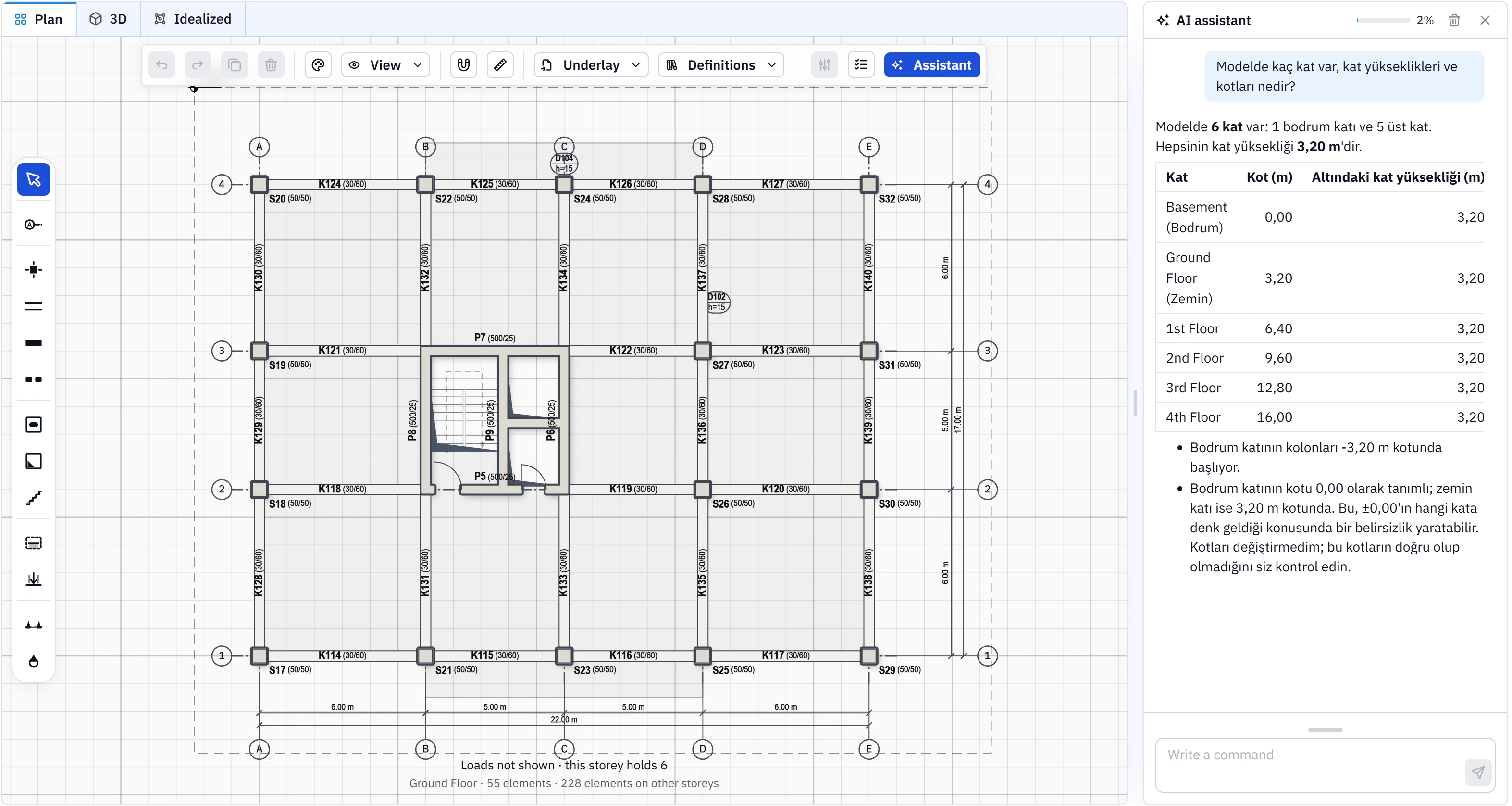
Questions and view commands
A question, such as a summary of the model, the elements with a given section, the model audit or a quantity takeoff, is answered in words and leaves no preview. Figures come as a table.
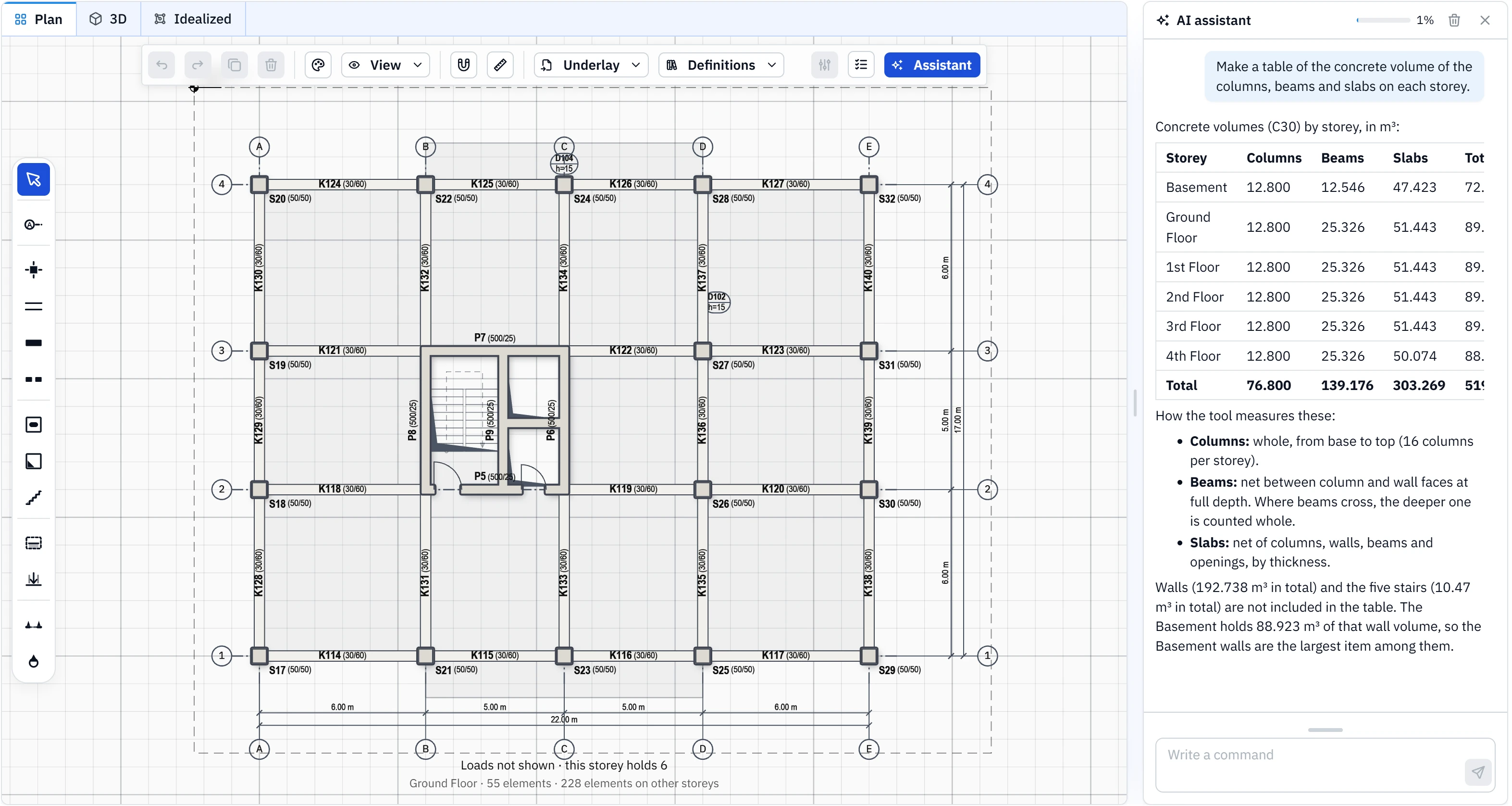
A command about the view, such as going to a storey, switching to 3D or colouring the elements, is carried out on the screen at once, without a preview.
What the assistant can do
| Area | Commands |
|---|---|
| Axes and storeys | Axis grids, straight and curved axes; moving, offsetting and renaming axes; adding storeys, their heights and elevations. |
| Members | Columns, beams, walls, partitions and braces. |
| Slabs and openings | Slabs, slab openings and wall openings. |
| Stairs | Stairs, fitting a stair between two faces, spiral stairs. |
| Loads and equipment | Loads on elements and slabs, load patterns, equipment. |
| Editing | Section size, material, rotation, name; moving, rotating, mirroring, aligning. |
| Copying and deleting | Copying on the storey and to other storeys; deleting, with the loads of a deleted element. |
| Views | Elevation views; the storey, the view and the colouring on the screen. |
The assistant asks for load values and for the values of a new material instead of making them up. It does not quote values or clauses of a design code from memory and does not run an analysis. For now it does not create plan sections or sets; it opens an existing plan section by its name. Where the editor refuses an edit, the assistant is refused in the same way.
Conversation history
The conversation is kept with the model for the person who wrote it; no one else sees it, an organization admin included. On a model that has never been saved it lasts only as long as the page is open. Earlier sessions are shown under a line that says they are not sent to the assistant: each session starts from the model as it is. Show older messages loads more of them.
Delete history, the bin in the assistant's header, deletes the whole conversation in the model after a confirmation. It cannot be used while a command runs or a preview waits.
Messages
| Message | Meaning |
|---|---|
| Your organization's assistant allowance for this month is used. | The monthly allowance is used up; it renews at the start of the month. Modelling by hand is not affected. |
| Too many requests in a short time. | Commands were sent too quickly; you can try again in a minute. |
| The assistant cannot answer at the moment. | The AI service is not answering; Try again sends the command again. |